
Personal Users + Trusted Auth
For enterprise clients onboarding personal users with the most flexibility.
0. Prerequisites
Create your developer account
You will need an active developer account to use Astra's sandbox API.
Sign up and generate API keys
- If you haven't already, browse to our Sandbox Dashboard.
- Enter your email and set a password.
- Enter your first and last name and agree to our Developer Policy and Terms of Service.
- When you click
Create Accountyou will be taken to the Dashboard panel. - On the Dashboard panel fill out the two required fields to generate your application's
client_idandclient_secret:- Name of your application
- Add a support email or URL
- Redirect URI for your application (you can change this value any time via the Dashboard)
- Click the Save Changes button at the bottom of the page. The page will refresh and reveal a new Keys section which will contain the Client ID and Client Secret for your application.
You now have an active developer account. You can always log into this dashboard again using your email address and password.
You may always return to the dashboard to access your keys.
Note that Redirect URIs are used to guide Users back to a specific page in your application after exiting our SDK. You may register multiple Redirect URIs through your Developer Dashboard, but it's important to note that Redirect URIs must remain consistent in OAuth URLs when an end-user is navigating through our SDK.
Trusted Authentication Approval
Trusted Authentication requires a level of trust between your company and Astra. Your Astra Integrations Specialist will share a questionnaire for your team to fill out.
KYC Delegation
Astra runs KYC on all personal users, but if you already run KYC on your users we can enable your program for KYC delegation. With KYC delegation enabled, the last four of the individual's Social Security Number (ssn) becomes an optional parameter when submitting User Intent creation requests. Please let your Astra Integration Specialist know if you'd like to learn more about KYC delegation.
1. Create a User Intent
The creation of a User Intent involves providing specific information for an individual.
❗The User Intent creation request can be found at:Create User Intent
Example User Intent Request
The following example User Intent Payload can be used for testing purposes once YOUR_PHONE and YOUR_EMAIL are replaced.
We recommend using one of the Sandbox Test Phone Numbers to replace YOUR_PHONE.
We recommend replacing YOUR_EMAIL with an email address that you own that can receive mail.
Basic Authorization secures this endpoint.
The
authorizationheader contains the base64 encoded string of:YOUR_CLIENT_ID:YOUR_CLIENT_SECRETThe values for
YOUR_CLIENT_IDandYOUR_CLIENT_SECRETcan be found under theKeyssection of the Astra Dashboard
curl --request POST \
     --url https://api-sandbox.astra.finance/v1/user_intent \
     --header 'accept: application/json' \
     --header 'authorization: Basic ***' \
     --header 'content-type: application/json' \
     --data '
{
  "first_name": "Edmund",
  "last_name": "Hillary",
  "date_of_birth": "1985-02-03",
  "ssn": "1234",
  "phone": "YOUR_PHONE",
  "email": "YOUR_EMAIL",
  "address1": "123 Astra Ave",
  "city": "Palo Alto",
  "state": "CA",
  "postal_code": "94304",
  "ip_address": "192.0.2.0"
}
'
Example User Intent Response
An id will be returned when submitting a User Intent. This is the user_intent_id.
{
  "id": "b020bff58ff3479ba5cb7e31a858d910"
}
2. Onboard the User Intent
Shortly after the User Intent is created, a User Intent Updated Webhook will be sent.
Take the user_intent_id and ensure the User Intent status is approved via: GET User Intent Details
After confirming the User Intent Status is approved you can use it to onboard the individual.
Onboarding a personal User involves four key steps:
- Authorization: Authorization requires that the personal User agrees to Astra's terms & privacy policy. This can be through embedding Astra's Terms + Privacy Policy in your terms. Alternatively, you can present a modal containing links to Astra's Terms and Privacy Policy ahead of the User using our services.
- Authentication: The Personal User authenticates by verifying ownership of their provided phone number (via SMS OTP / Phone 2FA).
- Generating Authorization (Trusted Authorization): Your application generates authorization by means of a
token(session token) via POST Generate a Partner Identity Verification Token. - Exchanging Authorization for Access Tokens (Trusted Authorization): Exchange the
token(session token) for anaccess_tokenandrefresh_tokenpair for the User via POST Authorize a User via API.
Trusted Authentication Onboarding
Take your user_intent_id and exchange it for a token (session token).
The token is short-lived (has a 1 minute TTL) and is one-time-use. In order to generate a token (session token) provide the user_intent_id during initial onboarding. Provide the user_id for all requests moving forward post-onboarding once you have the user_id.
curl --request POST \
     --url https://api-sandbox.astra.finance/v1/partner/identity/verification \
     --header 'accept: application/json' \
     --header 'authorization: Basic ***' \
     --header 'content-type: application/json' \
     --data '
{
  "user_intent_id": "user_intent_123456",
}
'Astra Response
{
"token": "token_123456"
}The
tokenvalue can be used in the Astra SDK (both for authorizing or adding a card) to bypass the phone OTP.
Onboard the individual by exchanging the token for an access_token/refresh_token pair.
token for an access_token/refresh_token pair.
UserConsentCapturedmust be set to true. Any other value will result in a failed Authorization. By settingUserConsentCapturetotrue, you are confirming that the End-User has consented to Astra's Terms and Privacy Policy.
Example request:
curl --request POST \
     --url https://api-sandbox.astra.finance/v1/partner/identity/token \
     --header 'accept: application/json' \
     --header 'authorization: Basic ***' \
     --header 'content-type: application/json' \
     --data '
{
  "token": "token_123456",
  "user_consent_captured": true,
  "expires_in": 86400
}
'
Astra Response
{
"access_token": "access_token_abc123",
"expires_in": 86400,
"refresh_token": "refresh_token_abc123",
"token_type": "Bearer"
}What's Next?
Once you've generated an access_token and refresh_token for a User, they are successfully onboarded to Astra!
With the access_token in hand, you can invoke various Astra API requests on behalf of the User.
With the access_token, make a request to GET /v1/user, and store the id returned as the Astra user_id in your system for use later.
3. Add A Card
Adding a card to an Astra User is easy, and you have a few options at your disposal.
Once a card is successfully added, a persistent card object associated the User will be created in Astra. This persistent card object can be referenced via a unique card_id.
Sandbox test card numbers are available here.
Adding a Card via the Astra Web App SDK
Options
Astra Web App SDK
Astra offers an out-of-the-box solution for adding a card. The Astra Web SDK can be embedded within an iFrame in your application.
There are two options for invoking the Astra Web SDK:
- Via SDK URL
- Via Javascript initialization
If we were to use option #1, the SDK URL, from the linked documentation we will utilize the user_id together with the Link Card action to build the SDK URL for this individual (we recommend using the SDK Generator to generate the SDK URL, after which you can copy it and open in a separate browser tab):
The Astra Web App SDK
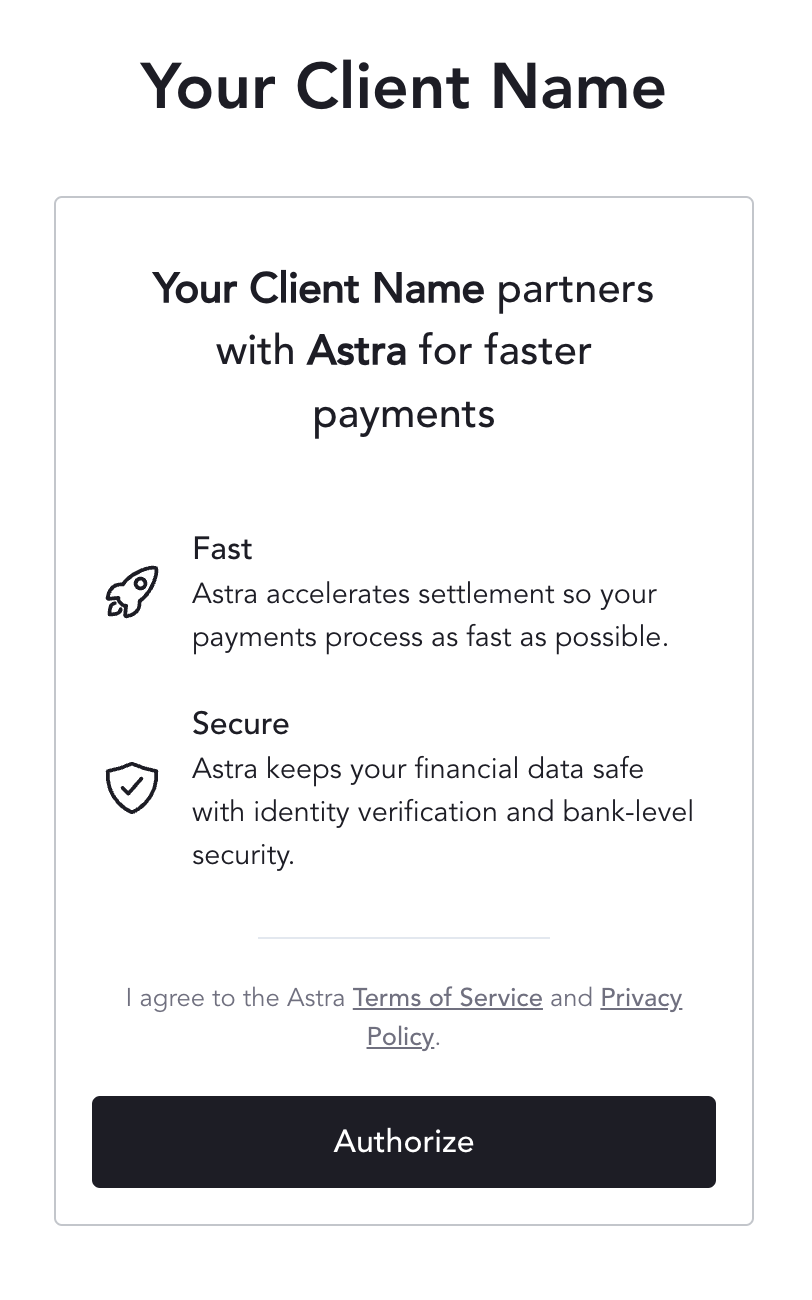
The first screen the individual will see is the Authorization screen. On this screen the individual is presented with Astra's Terms and Conditions and Privacy Policy. Here the individual is authorizing your client to act on their behalf in Astra.
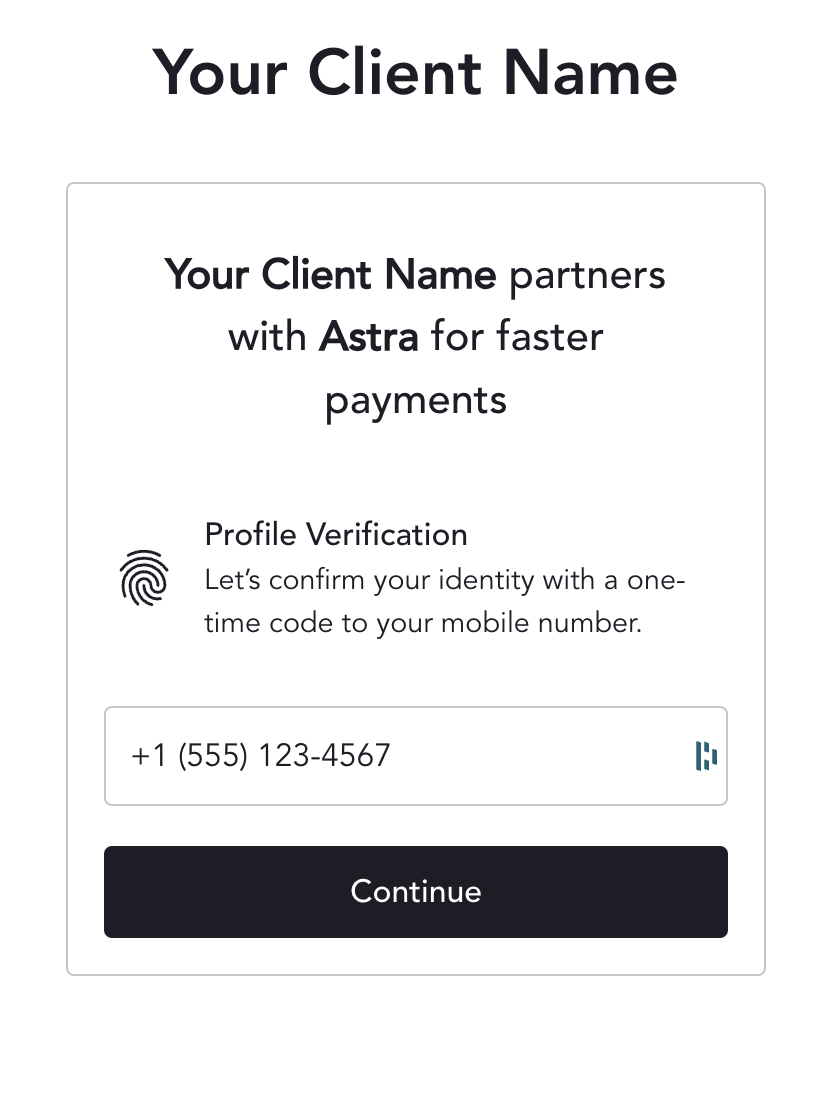
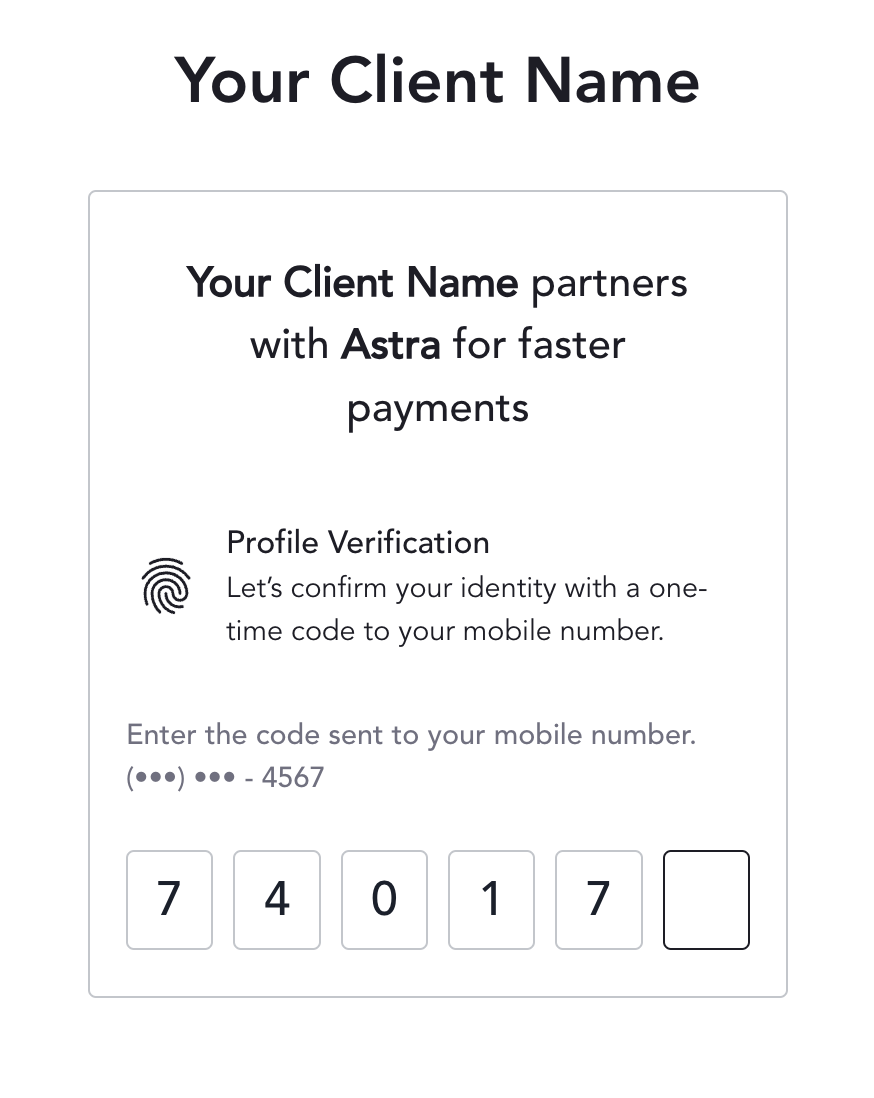
The next screen the individual will see is the Authentication screens.
First a screen verifying their phone number.
Then a screen to enter an SMS OTP.
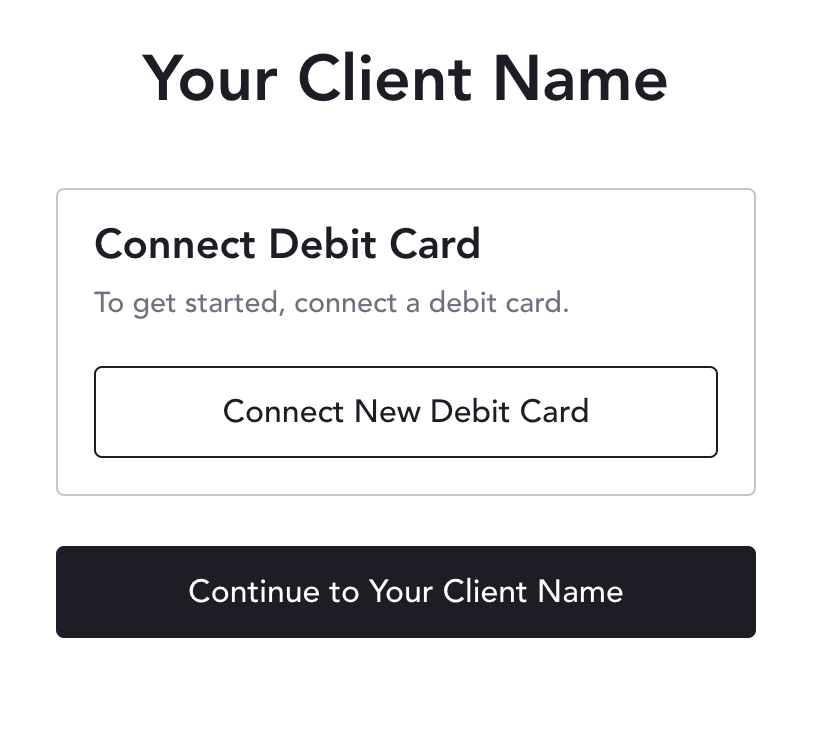
The option to add a card will be prompted if sending the user through the Link Card action, or during initial onboarding in the Collect Authorization action.
The individual will have the option to add a card, or skip adding a card.
Sandbox test card numbers are available here.
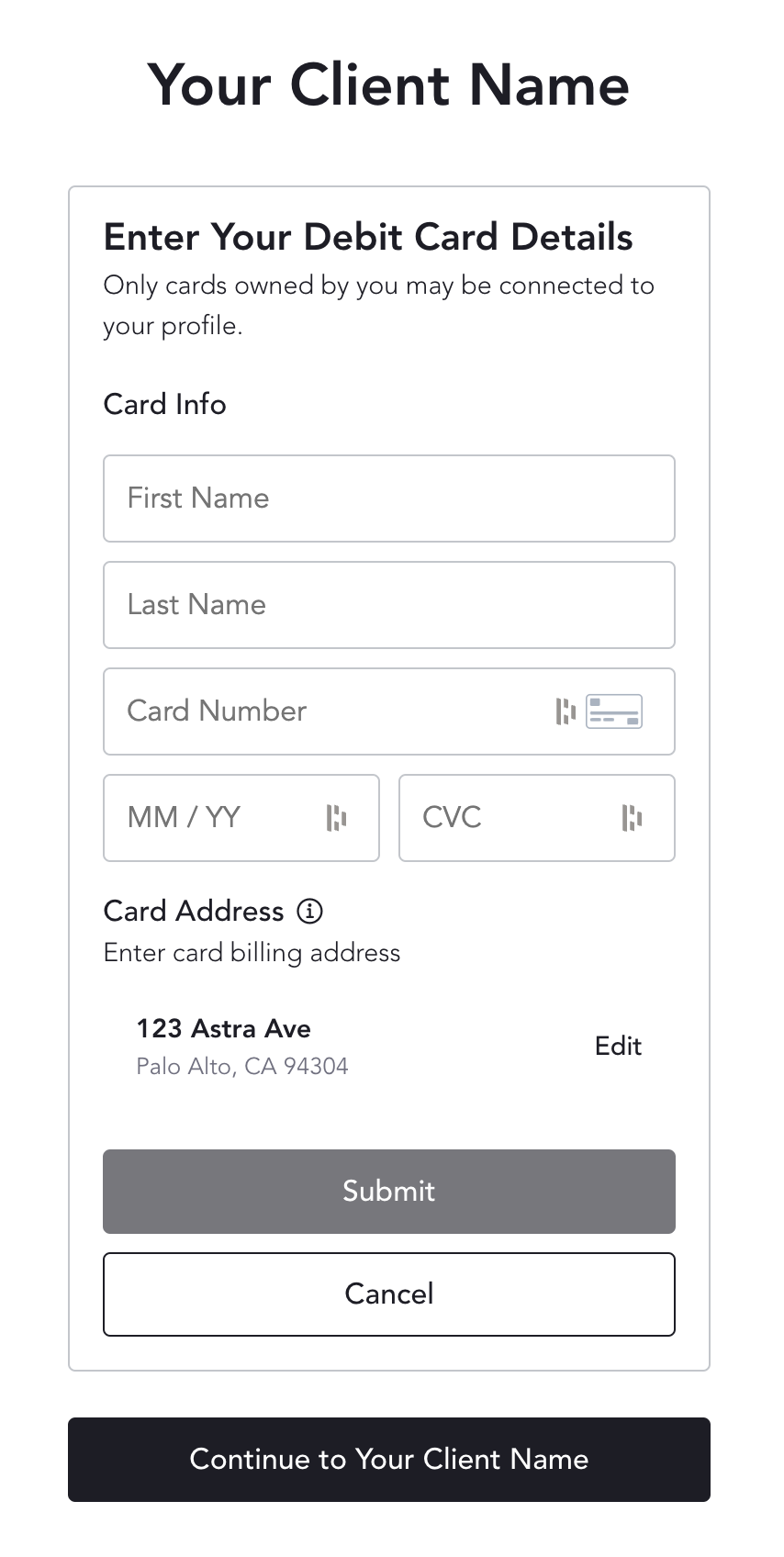
Link Card SDK URL
https://app-sandbox.astra.finance/cards/connect?session_token=token&client_id=your_client_id&redirect_uri=your_redirect_uri&user_id=your_user_id&phone=10_digit_phone&phone_read_only=trueAfter the card is successfully added, a card_created Card Webhook will be sent.
Details on enabling webhooks can be found here.
The card_created webhook will tell you that a card_id was created for a specific user_id. When your system receives the webhook we recommend fetching the specific card and storing the card_id in your system in association with the user_id.
Adding a Card via API
Astra offer the option to add add cards via API as well.
Note the
secureendpoint must be used when creating cards.https://secure.api-sandbox.astra.finance/v1/cards
Sandbox test card numbers are available here.
Do you want to add cards that you issue?Client-issued cards can be added to Astra by specifying
added_by_user: falsein the card creation API request.In addition, you'll also need to share your card BIN(s) with us.
4. Create a Card-to-Card Routine
A routine is a set of instructions on how to move funds. Card-to-Card routines provide instructions on how to move money from a source card to a destination card.
If a routine passes validation and starts processing, it will spawn a transfer.
The transfer will process the routine's instructions and attempt to move funds from the source card to the destination card.

Routine creation requires a User's access_token.
The routine creation API request can be found here.
For Me-to-Me routines, the payload is as simple as including the source and destination card_ids. See the example below for the minimum required fields:
For Peer-to-Peer Card-to-Card routines, the source card will always belong to the authenticating User (the authenticating User is the User that owns the access_token that is used in the Authorization header of the request). The destination_user_id will also need to be included in the request payload.
Example Card-to-Card Routine Request
curl --request POST \
     --url https://api-sandbox.astra.finance/v1/routines \
     --header 'accept: application/json' \
     --header 'authorization: Bearer access_token' \
     --header 'content-type: application/json' \
     --data '
{
  "type": "one-time",
  "payment_type": "debit",
  "name": "Phone Bill 020325",
  "source_id": "card_id_1",
  "destination_id": "card_id_2",
  "amount": 4.99
}
'
Example Routine Response
An id will be returned in the payload. This is the routine_id.
{
    "active": true,
    "amount": 4.99,
    "created": "2025-03-15T03:20:33.010178+00:00",
    "destination_id": "card_id_2",
    "destination_user_id": "authenticating_user_id",
    "id": "306489f0-d487-4026-8467-5634d680048a",
    "name": "Phone Bill 020325",
    "payment_type": "debit",
    "source_id": "card_id_1",
    "start_date": "2025-03-14",
    "status": "active",
    "type": "one-time"
}
The Transfer
Refer to the Transfer as the source of truth for the current status of the money movement attempt.
When the routine creates its transfer, you will receive a transfer_created webhook.
Details on Transfer webhooks can be found here.
Details on enabling webhooks can be found here.
Grab the resource_id value from the transfer_created webhook payload and fetch transfer specific details here.
Alternatively, you can also fetch a User's recent transfers via the List Transfers API resource.
From the transfer details response payload, you can use the routine_id property to correlate the transfer back to the routine that created it.
When you receive a transfer_updated webhook, fetch the transfer specific details again. In sandbox, this next transfer update should result in a transfer with a status: processed.
Congratulations you've successfully onboarded your first Astra User and successfully created a transfer for them!
Navigate to the Users section of the Astra Dashboard and click on your User's user_idto view a list of their transfers and more!
Updated 9 months ago